



Managing Large Amounts of Data in PrestaShop: A Practical Guide to Easy Import


Your supplier just sent a new price list with 8,000 items. You need to update prices, add new variants, and take discontinued products off sale. Doing it by hand in the PrestaShop admin panel would take days, with a good chance of mistakes along the way.
That’s exactly what the Easy Import & Export Products module is for. We use it in projects where product data changes often or needs to be moved from an old store. Below, we show how to work with it so a big import doesn’t turn into a big outage.
In short: the module lets you import and export products and combinations from many formats, update them by a chosen identifier, and run jobs automatically. Working safely comes down to five rules: a good key, a small test, a backup, working in batches, and checking the history.
When does PrestaShop’s standard import stop being enough?
The built-in importer handles simple tasks well. Problems start when files are large, formats vary, and updates need to run regularly. The module helps if:
How does working with the module look?
It all starts with an import rule. In it, you record where the file comes from and which column maps to which field. The rule can be run again later, so you set it up once instead of for every file.
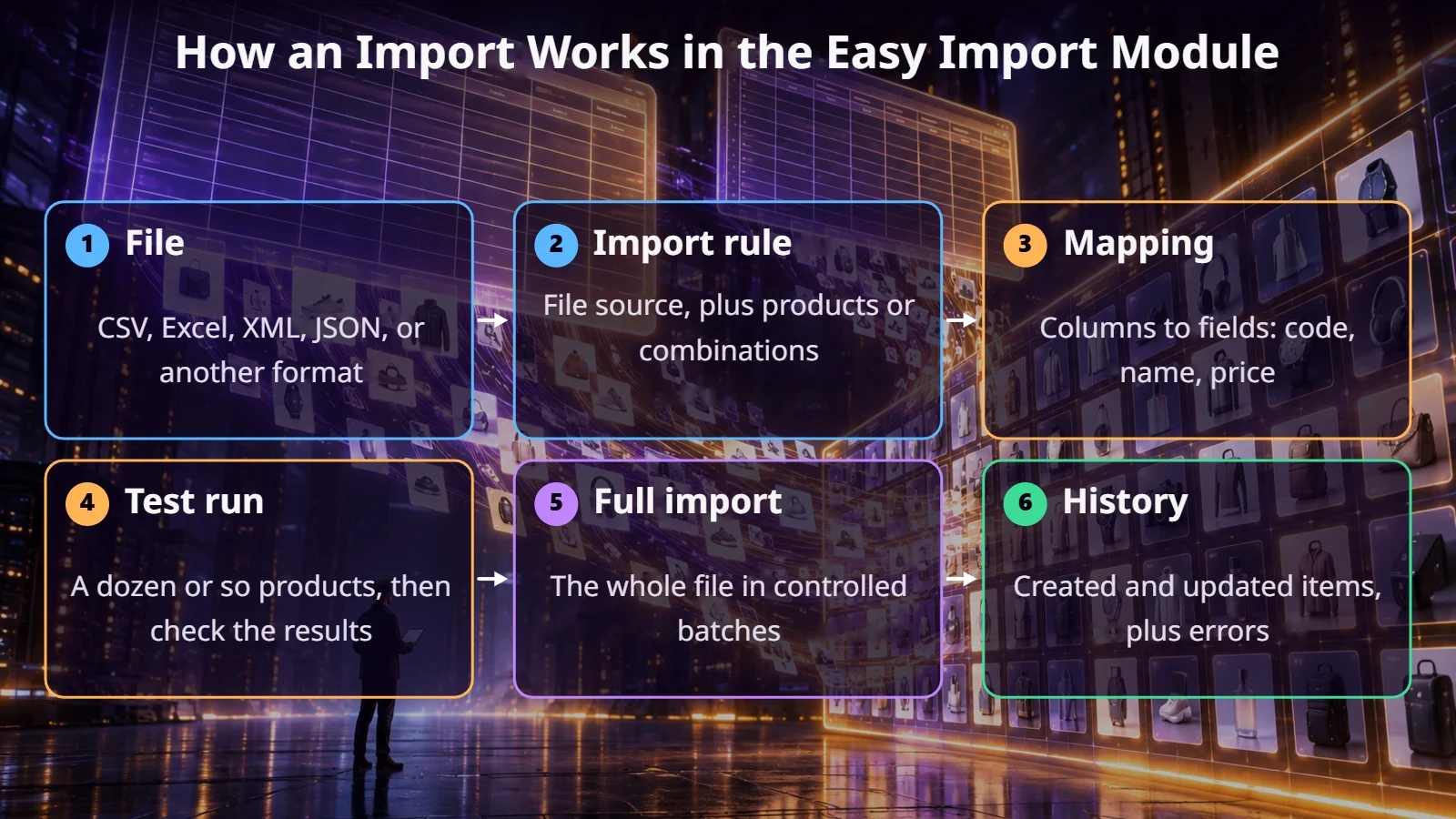
The module’s documentation recommends starting with a small file, for example 10 to 30 products. That’s good advice. Fixing a mistake on 20 products takes a moment; on 20,000 it could mean restoring a backup.
Preparing the data: the most important part of the job
Most problems come from the file itself, not the module. The Furnitex project is a good example. Before importing packaging data, we analyzed a file with 359 product codes. Only 177 matched products in the store right away. If we’d run the import without that check, some of the data simply wouldn’t have loaded or would have landed in the wrong place.
What can the module do with categories, prices, and images?
Categories. You can assign them using full paths in the form “Parent > Child.” The module will create any missing categories, so check the names before your first import, because a typo means a new branch in the category tree.
Prices. In the field settings, you can use formulas: a percentage, a fixed amount, or ranges. That’s useful when the supplier provides a purchase price and the store needs to apply its own markup.
Images. The module pulls them from URLs or folders on the server. With a large catalog, plan this separately, because images are usually the heaviest part of an import.
Languages and multistore. A single file can include columns for several languages, and in multistore setups you can use separate rules for different stores.
The prestaninja.pl team
Automated imports and scheduling
Once a rule works correctly, you can run it automatically via CRON. This works well for regular stock and price updates from suppliers. Files can come from several sources, and the choice depends on how the other side shares its data.
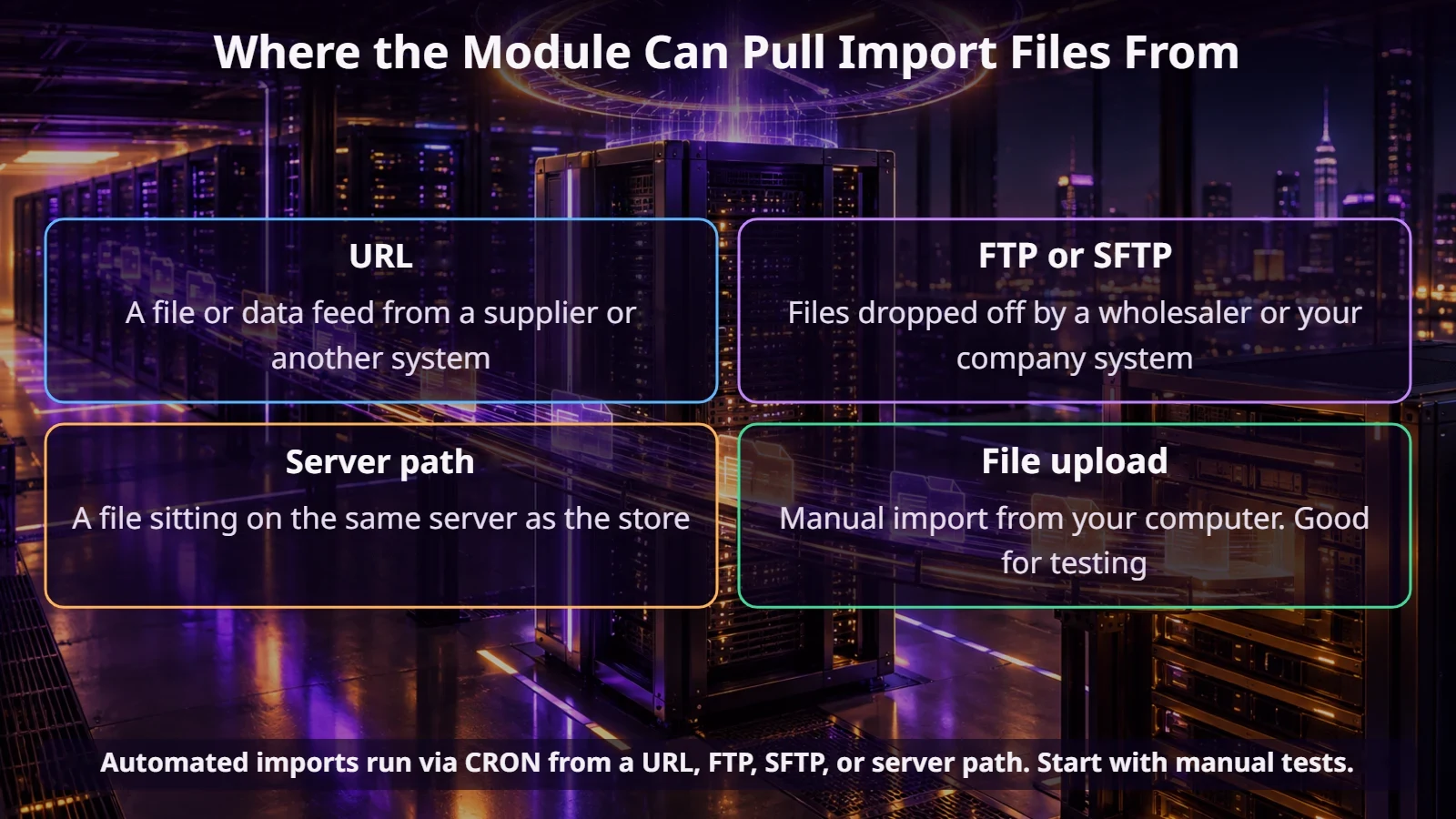
Schedule large imports for low-traffic hours. The module processes data in controlled batches, which reduces the risk of timeouts and server overload. If your store runs on weaker hosting, reduce the batch size, even if it means a longer run time. Also remember the skip conditions: they let you block changes to certain fields or entire products.
How do you avoid a costly mistake?
Does the module replace an ERP integration?
Not always. File imports work well for suppliers, migrations, and periodic updates. If stock and orders need to be exchanged with your ERP in real time, you’ll usually need an integration, like the one described in our article on PrestaShop and Symfonia. The module can still help fill in data that your ERP doesn’t have.
And not every store needs such a powerful tool. With a few hundred products that change once a quarter, the standard importer may be all you need.
Summary
Large catalogs can be managed calmly when the data has an owner, a key, and a repeatable process. Easy Import gives you the tools: rules, formats, formulas, CRON, and history. The rest depends on the quality of your files and your discipline when testing.
If you have a store with a large number of products or several suppliers, get in touch. We’ll help you clean up your data and set up an import that requires less manual work.
FAQ
Which formats does Easy Import support?
According to the documentation, import supports CSV, XLS, XLSX, XML, JSON, TXT, ODS, RSS, and TSV, among others, and export supports CSV, XLS, XLSX, XML, JSON, TXT, and ODS.
Can the module update existing products?
Yes, by ID, reference code, EAN, supplier code, MPN, or ISBN.
Can the import run automatically?
Yes, via CRON, pulling the file from a URL, FTP, SFTP, or a path on the server.
Where should I start with my first import?
With a small test file and a check of a few products on the storefront. Only then run the full file.